⚡ 3秒でわかる!この記事のポイント
- Cloud Workstationsはフルマネージドなクラウド開発環境で、ローカルPCの性能に依存しない開発が可能
- VS Code(デスクトップ/Web版)やJetBrains IDEとネイティブ連携できる
- 自動停止・Spotインスタンスでコストを抑えつつ、ハイスペックな開発環境を提供
「ローカルPCのスペックが足りない」「チーム全員の開発環境を統一したい」「セキュアなクラウド開発環境が必要」
Google Cloud Workstationsは、フルマネージドなクラウド開発環境サービスです。 高性能なクラウドVMをベースに、VS CodeやJetBrains IDEをそのまま使えるカスタマイズ可能な開発環境を提供します。ローカルPCのスペックに依存せず、どこからでも同じ環境で開発できます。
この記事では、Google Cloud完全攻略シリーズEp.28として、Cloud Workstationsの構築から運用までを徹底解説します。
この記事でわかること
- Cloud Workstationsの基本概念とアーキテクチャ
- ワークステーション設定とカスタムイメージの構築
- IDE連携と開発ワークフローの最適化
- コスト管理とセキュリティの設計
Cloud Workstationsとは?クラウドネイティブ開発環境の基礎
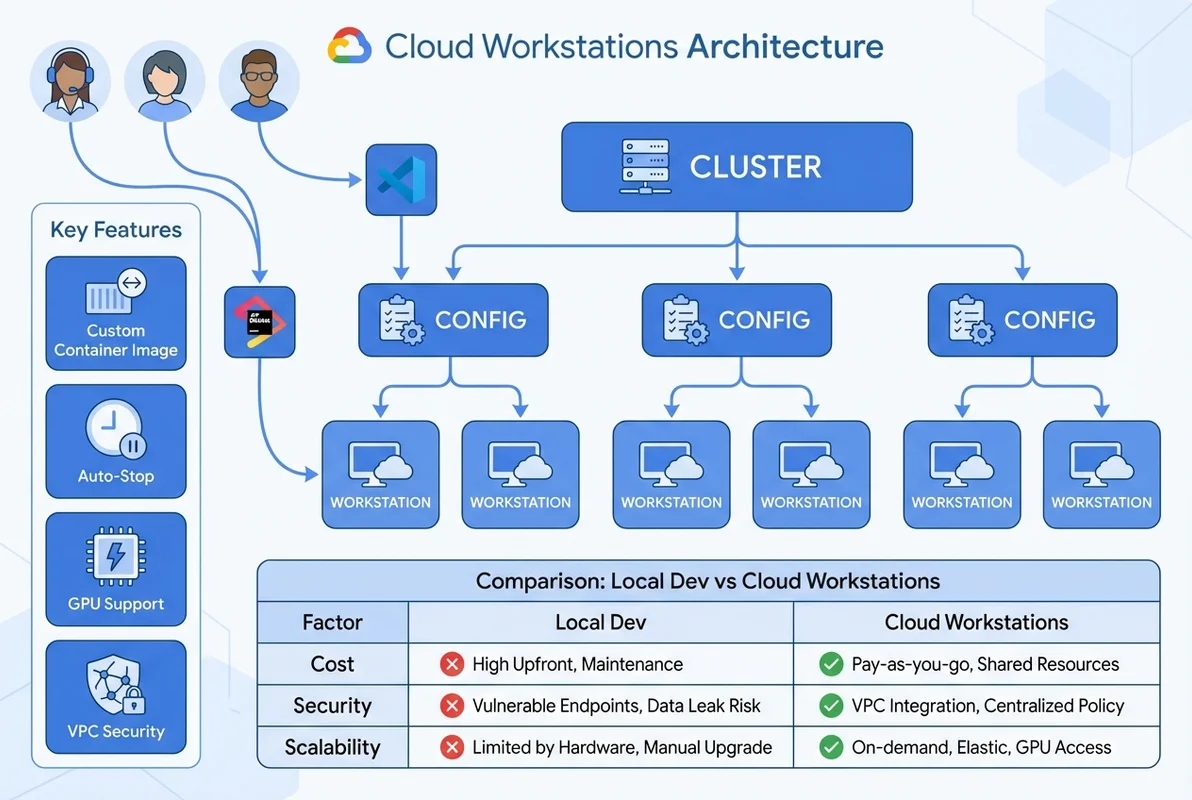
Cloud Workstationsの基本アーキテクチャ
Cloud Workstationsは、3層のリソース階層で構成されています。
ワークステーションクラスタ(Workstation Cluster)
└── ワークステーション設定(Workstation Config)
    └── ワークステーション(Workstation)
1. ワークステーションクラスタ
- VPCネットワークとリージョンに紐づく
- セキュリティ境界の単位
2. ワークステーション設定
- マシンタイプ、ディスクサイズ、コンテナイメージを定義
- 自動停止ポリシー、ネットワーク設定を管理
3. ワークステーション
- 実際のの開発環境インスタンス
- 開発者ごとに1つ以上割り当て
ローカル開発環境との比較
| 項目 | ローカル開発 | Cloud Workstations |
|---|---|---|
| 初期コスト | PC購入費(30-50万円) | 月額利用料のみ |
| スペック変更 | PC買い替え | 設定変更で即時 |
| セキュリティ | 端末依存 | Google Cloud IAM |
| 環境統一 | 困難 | カスタムイメージで統一 |
| オフライン作業 | ✅ 可能 | ❌ 不可 |
| GPU利用 | 高額PC必要 | 従量課金で利用可能 |
| バックアップ | 手動 | 自動(永続ディスク) |
Cloud Workstationsの構築
Step 1: クラスタの作成
# ワークステーションクラスタの作成
gcloud workstations clusters create dev-cluster \
  --region=asia-northeast1 \
  --network=projects/my-project/global/networks/dev-vpc \
  --subnetwork=projects/my-project/regions/asia-northeast1/subnetworks/dev-subnet

# クラスタの確認
gcloud workstations clusters describe dev-cluster \
  --region=asia-northeast1
Step 2: ワークステーション設定の作成
# 基本設定
gcloud workstations configs create standard-config \
  --cluster=dev-cluster \
  --region=asia-northeast1 \
  --machine-type=e2-standard-8 \
  --pd-disk-size=200 \
  --pd-disk-type=pd-balanced \
  --idle-timeout=7200s \
  --running-timeout=43200s

# GPU付きの高性能設定
gcloud workstations configs create gpu-config \
  --cluster=dev-cluster \
  --region=asia-northeast1 \
  --machine-type=n1-standard-8 \
  --pd-disk-size=500 \
  --pd-disk-type=pd-ssd \
  --accelerator-type=nvidia-tesla-t4 \
  --accelerator-count=1 \
  --idle-timeout=3600s
Step 3: ワークステーションの作成と起動
# ワークステーションの作成
gcloud workstations create my-workstation \
  --config=standard-config \
  --cluster=dev-cluster \
  --region=asia-northeast1

# 起動
gcloud workstations start my-workstation \
  --config=standard-config \
  --cluster=dev-cluster \
  --region=asia-northeast1

# 停止
gcloud workstations stop my-workstation \
  --config=standard-config \
  --cluster=dev-cluster \
  --region=asia-northeast1
カスタムコンテナイメージの構築
基本のDockerfile
Cloud Workstationsは、カスタムコンテナイメージでプリインストール済みのツールやSDKを含む開発環境を定義できます。
# Dockerfile
FROM us-central1-docker.pkg.dev/cloud-workstations-images/predefined/code-oss:latest

# =====================
# システムパッケージ
# =====================
RUN apt-get update && apt-get install -y \
    git \
    curl \
    wget \
    jq \
    unzip \
    build-essential \
    python3-pip \
    && rm -rf /var/lib/apt/lists/*

# =====================
# Node.js (v22 LTS)
# =====================
RUN curl -fsSL https://deb.nodesource.com/setup_22.x | bash - \
    && apt-get install -y nodejs

# =====================
# Go 1.23
# =====================
RUN wget -q https://go.dev/dl/go1.23.0.linux-amd64.tar.gz \
    && tar -C /usr/local -xzf go1.23.0.linux-amd64.tar.gz \
    && rm go1.23.0.linux-amd64.tar.gz
ENV PATH="${PATH}:/usr/local/go/bin"

# =====================
# Google Cloud SDK拡張
# =====================
RUN gcloud components install kubectl gke-gcloud-auth-plugin

# =====================
# Docker CLI(Docker in Docker)
# =====================
RUN curl -fsSL https://get.docker.com | sh

# =====================
# Terraform
# =====================
RUN wget -q https://releases.hashicorp.com/terraform/1.9.0/terraform_1.9.0_linux_amd64.zip \
    && unzip terraform_1.9.0_linux_amd64.zip -d /usr/local/bin/ \
    && rm terraform_1.9.0_linux_amd64.zip

# =====================
# VS Code拡張機能のプリインストール
# =====================
RUN code-oss --install-extension ms-python.python \
    && code-oss --install-extension golang.go \
    && code-oss --install-extension esbenp.prettier-vscode \
    && code-oss --install-extension dbaeumer.vscode-eslint \
    && code-oss --install-extension hashicorp.terraform

# =====================
# 共通設定
# =====================
COPY .bashrc /etc/skel/.bashrc
COPY .gitconfig /etc/skel/.gitconfig
イメージのビルドとプッシュ
# Artifact Registryにリポジトリ作成
gcloud artifacts repositories create workstation-images \
  --repository-format=docker \
  --location=asia-northeast1

# ビルド&プッシュ
docker build -t asia-northeast1-docker.pkg.dev/my-project/workstation-images/dev-env:v1 .
docker push asia-northeast1-docker.pkg.dev/my-project/workstation-images/dev-env:v1

# Cloud Buildでビルド(CI/CD連携)
gcloud builds submit . \
  --tag=asia-northeast1-docker.pkg.dev/my-project/workstation-images/dev-env:v1
カスタムイメージを設定に適用
gcloud workstations configs create custom-config \
  --cluster=dev-cluster \
  --region=asia-northeast1 \
  --machine-type=e2-standard-8 \
  --pd-disk-size=200 \
  --container-custom-image=asia-northeast1-docker.pkg.dev/my-project/workstation-images/dev-env:v1 \
  --idle-timeout=7200s
IDE連携と開発ワークフロー
VS Code(デスクトップ版)からの接続
# SSH接続の設定
gcloud workstations ssh my-workstation \
  --config=standard-config \
  --cluster=dev-cluster \
  --region=asia-northeast1

# VS Code Remote SSHで接続
# 1. VS Code拡張機能「Remote - SSH」をインストール
# 2. SSH設定に追加
# ~/.ssh/config
# Host cloud-workstation
#   HostName [ワークステーションのIP]
#   User user
#   IdentityFile ~/.ssh/google_compute_engine
ブラウザIDEの利用
Cloud Workstationsには、ブラウザベースのIDEが組み込まれています。
# ブラウザIDEのURLを取得
gcloud workstations describe my-workstation \
  --config=standard-config \
  --cluster=dev-cluster \
  --region=asia-northeast1 \
  --format='value(host)'

# → https://80-my-workstation-xxxx.cloudworkstations.dev
JetBrains Gateway連携
# JetBrains Gatewayの設定
# 1. JetBrains Gatewayをインストール
# 2. 「Google Cloud Workstations」プラグインを追加
# 3. Google Cloudアカウントで認証
# 4. ワークステーションを選択して接続

# IntelliJ IDEA、PyCharm、GoLandなどが利用可能
Git設定の自動化
#!/bin/bash
# /etc/workstation-startup.d/010-git-config.sh

# ユーザー情報を環境変数から設定
git config --global user.name "${GIT_USER_NAME:-Developer}"
git config --global user.email "${GIT_USER_EMAIL:-dev@example.com}"

# クレデンシャルヘルパー(GCRへのアクセス)
git config --global credential.helper gcloud.sh

# よく使うエイリアス
git config --global alias.co checkout
git config --global alias.br branch
git config --global alias.ci commit
git config --global alias.st status
git config --global alias.lg "log --oneline --graph --all"
コスト管理
コスト構造
Cloud Workstationsのコストは以下で構成されます:
月額コスト = マシン時間 + ディスク + ネットワーク + (GPU)

例: e2-standard-8, 200GB PD-Balanced, 1日8時間稼働
  マシン:   $0.268/h × 8h × 22日 = $47.17
  ディスク: $0.10/GB × 200GB      = $20.00
  合計:                             ≈ $67.17/月

比較: ローカル開発(Mac mini M4 Pro 36GB)
  購入費: ¥300,000 / 36ヶ月 = ¥8,333/月(≈$55/月)
  電気代: ≈$10/月
  合計:                      ≈ $65/月
自動停止によるコスト最適化
# アイドル1時間で自動停止
gcloud workstations configs update standard-config \
  --cluster=dev-cluster \
  --region=asia-northeast1 \
  --idle-timeout=3600s

# 最大稼働12時間で強制停止
gcloud workstations configs update standard-config \
  --cluster=dev-cluster \
  --region=asia-northeast1 \
  --running-timeout=43200s
予算アラートの設定
# 予算の作成
gcloud billing budgets create \
  --billing-account=BILLING_ACCOUNT_ID \
  --display-name="Cloud Workstations Budget" \
  --budget-amount=10000JPY \
  --threshold-rule=percent=50 \
  --threshold-rule=percent=80 \
  --threshold-rule=percent=100 \
  --notifications-rule-pubsub-topic=projects/my-project/topics/budget-alerts
チーム利用時のコスト配分
# ラベルベースのコスト追跡
gcloud workstations configs create team-config \
  --cluster=dev-cluster \
  --region=asia-northeast1 \
  --machine-type=e2-standard-4 \
  --labels="team=backend,cost-center=engineering"
セキュリティ設計
VPC Service Controlsとの統合
# サービスペリメーターの作成
gcloud access-context-manager perimeters create workstation-perimeter \
  --title="Workstation Security Perimeter" \
  --resources="projects/my-project" \
  --restricted-services="workstations.googleapis.com" \
  --access-levels="accessPolicies/POLICY/accessLevels/corp-network"
IAMによるアクセス制御
# 開発者へのワークステーション利用権限付与
gcloud workstations configs add-iam-policy-binding standard-config \
  --cluster=dev-cluster \
  --region=asia-northeast1 \
  --member="user:[email protected]" \
  --role="roles/workstations.user"

# 管理者権限(設定変更可能)
gcloud workstations configs add-iam-policy-binding standard-config \
  --cluster=dev-cluster \
  --region=asia-northeast1 \
  --member="group:[email protected]" \
  --role="roles/workstations.admin"
プライベートクラスタの構成
# プライベートクラスタ(インターネット非公開)
gcloud workstations clusters create private-cluster \
  --region=asia-northeast1 \
  --network=projects/my-project/global/networks/private-vpc \
  --subnetwork=projects/my-project/regions/asia-northeast1/subnetworks/private-subnet \
  --enable-private-endpoint

# Cloud NATで外部アクセス(パッケージダウンロード等)
gcloud compute routers nats create workstation-nat \
  --router=workstation-router \
  --region=asia-northeast1 \
  --nat-all-subnet-ip-ranges \
  --auto-allocate-nat-external-ips
データ漏洩防止(DLP)
# クリップボードの無効化
gcloud workstations configs create secure-config \
  --cluster=dev-cluster \
  --region=asia-northeast1 \
  --machine-type=e2-standard-8 \
  --disable-tcp-connections \
  --enable-audit-agent
Terraform(IaC)による構築
# main.tf
resource "google_workstations_workstation_cluster" "dev" {
  provider               = google-beta
  workstation_cluster_id = "dev-cluster"
  network                = google_compute_network.dev.id
  subnetwork             = google_compute_subnetwork.dev.id
  location               = "asia-northeast1"
}

resource "google_workstations_workstation_config" "standard" {
  provider               = google-beta
  workstation_config_id  = "standard-config"
  workstation_cluster_id = google_workstations_workstation_cluster.dev.workstation_cluster_id
  location               = "asia-northeast1"

  host {
    gce_instance {
      machine_type = "e2-standard-8"
      boot_disk_size_gb = 50
      disable_public_ip_addresses = true
    }
  }

  persistent_directories {
    mount_path = "/home"
    gce_pd {
      size_gb   = 200
      fs_type   = "ext4"
      disk_type = "pd-balanced"
    }
  }

  container {
    image = "asia-northeast1-docker.pkg.dev/${var.project_id}/workstation-images/dev-env:v1"
  }

  idle_timeout    = "7200s"
  running_timeout = "43200s"

  labels = {
    team        = "engineering"
    cost-center = "development"
  }
}
SES案件でのCloud Workstations活用事例
事例1: 大手金融機関のセキュア開発環境
データ持ち出し制限のある金融系案件で、Cloud Workstationsによるセキュアな開発環境を構築しました。
成果:
- BYOD(個人PC)での開発が可能に(データはクラウドに残る)
- VDI(Virtual Desktop Infrastructure)からの移行でコスト40%削減
- 環境構築時間を3日→30分に短縮
事例2: リモートチームの環境統一
5社のSES企業が参加するプロジェクトで、全員の開発環境を統一しました。
成果:
- 「自分の環境では動く」問題を完全に解消
- 新メンバーのオンボーディング時間を1週間→1時間に短縮
- カスタムイメージのCI/CDで環境更新を自動化
事例3: GPU開発環境のオンデマンド提供
機械学習案件で、必要な時だけGPU付きワークステーションを起動する運用を実現しました。
成果:
- GPU常時起動と比較してコスト75%削減
- T4/A100を案件の要件に応じて切り替え
- ローカルGPUマシンの購入が不要に
まとめ: Cloud Workstationsでチーム開発を次のレベルへ
Google Cloud Workstationsは、開発環境の構築・管理・セキュリティをすべてクラウドに統合する強力なサービスです。
Cloud Workstationsを選ぶべきポイント:
- ✅ チーム全員の環境を統一したい
- ✅ セキュリティ要件が厳しい(金融・医療等)
- ✅ ハイスペック環境が必要だがPC購入を避けたい
- ✅ GPU開発環境をオンデマンドで使いたい
- ✅ リモートワーク対応の開発環境が必要
💡 SESエンジニアへのアドバイス
- Cloud Workstationsの構築経験は、プラットフォームエンジニアリング案件で高い需要
- カスタムイメージのCI/CDパイプライン設計ができると、DevOps案件で差別化になる
- セキュアな開発環境の設計経験は、金融・官公庁案件で特に評価される