「アクセスが増えてもサービスを止めたくない」——高可用性を実現するLoad Balancingは、SES案件で必須のスキルです。
Google Cloud Load Balancingは、グローバル分散・自動スケーリング・DDoS防御を一体化した負荷分散サービスです。 本記事では、SESエンジニアが知っておくべきLoad Balancingの種類・設定方法・運用のベストプラクティスを解説します。
この記事を3秒でまとめると
- Google Cloud Load Balancingはグローバル/リージョナル、HTTP(S)/TCP/UDPの複数タイプを提供
- Cloud CDN連携、マネージドSSL証明書、Cloud Armor(WAF)との統合が可能
- SES案件ではWebアプリの可用性・パフォーマンス改善の設計スキルとして需要が高い
Google Cloud Load Balancingの全体像
Load Balancerの種類
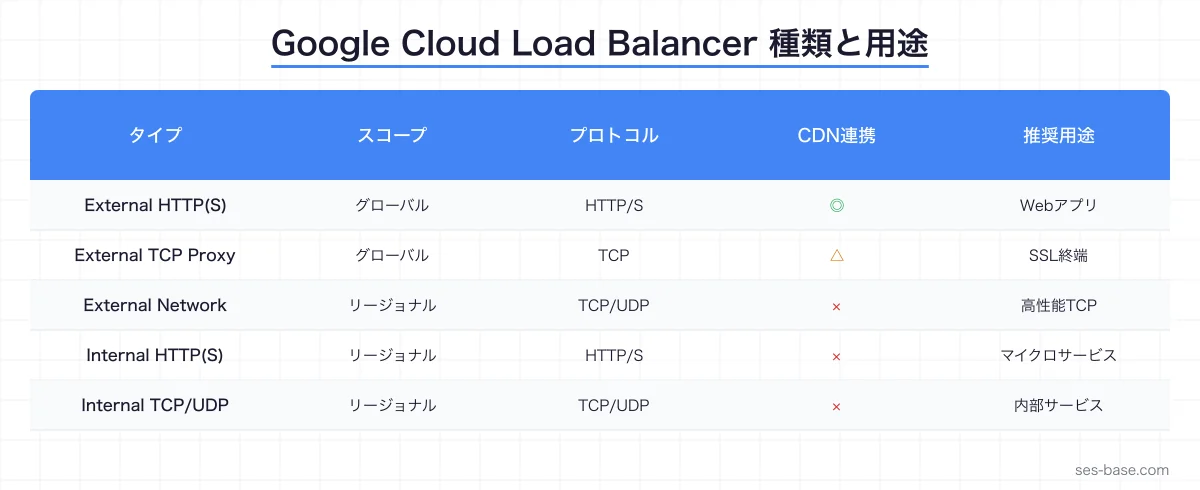
Google Cloudは用途に応じた複数のLoad Balancerを提供しています。
| タイプ | スコープ | プロトコル | 用途 |
|---|---|---|---|
| External HTTP(S) LB | グローバル | HTTP/HTTPS | Webアプリ、API |
| External TCP Proxy LB | グローバル | TCP | SSL終端、TCP プロキシ |
| External UDP LB | リージョナル | UDP | ゲーム、リアルタイム通信 |
| Internal HTTP(S) LB | リージョナル | HTTP/HTTPS | マイクロサービス間通信 |
| Internal TCP/UDP LB | リージョナル | TCP/UDP | 内部サービス |
| External Network LB | リージョナル | TCP/UDP | 高パフォーマンスTCP |
AWSとの比較
AWS ALB/NLBに慣れているSESエンジニア向けの対照表です。
| 機能 | Google Cloud | AWS |
|---|---|---|
| HTTP(S) LB | External HTTP(S) LB | Application Load Balancer |
| TCP/UDP LB | Network LB / TCP Proxy | Network Load Balancer |
| 内部 LB | Internal HTTP(S) LB | Internal ALB/NLB |
| CDN連携 | Cloud CDN(統合) | CloudFront(別サービス) |
| WAF | Cloud Armor(統合) | AWS WAF(別サービス) |
| SSL証明書 | マネージド自動更新 | ACM |
| グローバル分散 | デフォルト対応 | Global Accelerator 必要 |
External HTTP(S) Load Balancerの構築
基本構成
最も使用頻度の高いExternal HTTP(S) Load Balancerの構成手順です。
# 1. ヘルスチェックの作成
gcloud compute health-checks create http my-health-check \
  --port=8080 \
  --request-path=/health \
  --check-interval=10s \
  --timeout=5s \
  --healthy-threshold=2 \
  --unhealthy-threshold=3

# 2. バックエンドサービスの作成
gcloud compute backend-services create my-backend-service \
  --protocol=HTTP \
  --port-name=http \
  --health-checks=my-health-check \
  --global \
  --enable-logging \
  --logging-sample-rate=1.0

# 3. インスタンスグループの追加
gcloud compute backend-services add-backend my-backend-service \
  --instance-group=my-instance-group \
  --instance-group-zone=asia-northeast1-a \
  --balancing-mode=UTILIZATION \
  --max-utilization=0.8 \
  --capacity-scaler=1.0 \
  --global

# 4. URLマップの作成
gcloud compute url-maps create my-url-map \
  --default-service=my-backend-service

# 5. ターゲットHTTPSプロキシの作成
gcloud compute target-https-proxies create my-https-proxy \
  --url-map=my-url-map \
  --ssl-certificates=my-ssl-cert

# 6. フォワーディングルールの作成
gcloud compute forwarding-rules create my-forwarding-rule \
  --load-balancing-scheme=EXTERNAL \
  --network-tier=PREMIUM \
  --address=my-static-ip \
  --target-https-proxy=my-https-proxy \
  --ports=443 \
  --global
Terraformでの構築
SES案件ではIaCでの管理が求められることが多いです。Terraformでの設定例を示します。
# ヘルスチェック
resource "google_compute_health_check" "default" {
  name = "my-health-check"

  http_health_check {
    port         = 8080
    request_path = "/health"
  }

  check_interval_sec  = 10
  timeout_sec         = 5
  healthy_threshold   = 2
  unhealthy_threshold = 3
}

# バックエンドサービス
resource "google_compute_backend_service" "default" {
  name                  = "my-backend-service"
  protocol              = "HTTP"
  port_name             = "http"
  load_balancing_scheme = "EXTERNAL"
  timeout_sec           = 30
  health_checks         = [google_compute_health_check.default.id]

  backend {
    group           = google_compute_instance_group_manager.default.instance_group
    balancing_mode  = "UTILIZATION"
    max_utilization = 0.8
    capacity_scaler = 1.0
  }

  log_config {
    enable      = true
    sample_rate = 1.0
  }

  # Cloud CDNの有効化
  enable_cdn = true
  cdn_policy {
    cache_mode                   = "CACHE_ALL_STATIC"
    default_ttl                  = 3600
    max_ttl                      = 86400
    negative_caching             = true
    signed_url_cache_max_age_sec = 7200
  }
}

# URLマップ
resource "google_compute_url_map" "default" {
  name            = "my-url-map"
  default_service = google_compute_backend_service.default.id

  host_rule {
    hosts        = ["api.example.com"]
    path_matcher = "api"
  }

  path_matcher {
    name            = "api"
    default_service = google_compute_backend_service.default.id

    path_rule {
      paths   = ["/api/v1/*"]
      service = google_compute_backend_service.default.id
    }

    path_rule {
      paths   = ["/static/*"]
      service = google_compute_backend_bucket.static.id
    }
  }
}

# マネージドSSL証明書
resource "google_compute_managed_ssl_certificate" "default" {
  name = "my-ssl-cert"

  managed {
    domains = ["example.com", "api.example.com"]
  }
}

# HTTPS プロキシ
resource "google_compute_target_https_proxy" "default" {
  name             = "my-https-proxy"
  url_map          = google_compute_url_map.default.id
  ssl_certificates = [google_compute_managed_ssl_certificate.default.id]

  ssl_policy = google_compute_ssl_policy.modern.id
}

# SSLポリシー
resource "google_compute_ssl_policy" "modern" {
  name            = "modern-ssl-policy"
  profile         = "MODERN"
  min_tls_version = "TLS_1_2"
}

# グローバル静的IPアドレス
resource "google_compute_global_address" "default" {
  name = "my-lb-ip"
}

# フォワーディングルール(HTTPS)
resource "google_compute_global_forwarding_rule" "https" {
  name                  = "my-https-rule"
  ip_protocol           = "TCP"
  load_balancing_scheme = "EXTERNAL"
  port_range            = "443"
  target                = google_compute_target_https_proxy.default.id
  ip_address            = google_compute_global_address.default.id
}

# HTTP → HTTPS リダイレクト
resource "google_compute_url_map" "http_redirect" {
  name = "http-redirect"

  default_url_redirect {
    https_redirect         = true
    redirect_response_code = "MOVED_PERMANENTLY_DEFAULT"
    strip_query            = false
  }
}

resource "google_compute_target_http_proxy" "redirect" {
  name    = "http-redirect-proxy"
  url_map = google_compute_url_map.http_redirect.id
}

resource "google_compute_global_forwarding_rule" "http" {
  name                  = "my-http-rule"
  ip_protocol           = "TCP"
  load_balancing_scheme = "EXTERNAL"
  port_range            = "80"
  target                = google_compute_target_http_proxy.redirect.id
  ip_address            = google_compute_global_address.default.id
}
Google Cloud IAC・Terraformガイドで、Terraformの基本を解説しています。
Cloud CDN連携
CDNの設定
Cloud CDNはLoad Balancerに統合されており、追加設定だけで有効化できます。
# バックエンドサービスにCDNを有効化
gcloud compute backend-services update my-backend-service \
  --enable-cdn \
  --global

# キャッシュポリシーの設定
gcloud compute backend-services update my-backend-service \
  --cache-mode=CACHE_ALL_STATIC \
  --default-ttl=3600 \
  --max-ttl=86400 \
  --global
キャッシュ制御
# キャッシュの無効化(パージ)
gcloud compute url-maps invalidate-cdn-cache my-url-map \
  --path="/static/*" \
  --global

# 特定パスのキャッシュ無効化
gcloud compute url-maps invalidate-cdn-cache my-url-map \
  --path="/api/v1/config" \
  --global
キャッシュヒット率の最適化
# アプリケーション側のキャッシュヘッダー設定
# 静的ファイル
Cache-Control: public, max-age=2592000, immutable

# API レスポンス(キャッシュ可能)
Cache-Control: public, max-age=300, s-maxage=600

# API レスポンス(キャッシュ不可)
Cache-Control: no-store, no-cache, must-revalidate

# 画像ファイル
Cache-Control: public, max-age=604800
Cloud Armor(WAF)連携
セキュリティポリシーの設定
# セキュリティポリシーの作成
gcloud compute security-policies create my-security-policy \
  --description="Web Application Firewall rules"

# SQLインジェクション対策
gcloud compute security-policies rules create 1000 \
  --security-policy=my-security-policy \
  --expression="evaluatePreconfiguredExpr('sqli-v33-stable')" \
  --action=deny-403 \
  --description="Block SQL injection"

# XSS対策
gcloud compute security-policies rules create 1001 \
  --security-policy=my-security-policy \
  --expression="evaluatePreconfiguredExpr('xss-v33-stable')" \
  --action=deny-403 \
  --description="Block XSS attacks"

# レートリミット
gcloud compute security-policies rules create 2000 \
  --security-policy=my-security-policy \
  --expression="true" \
  --action=rate-based-ban \
  --rate-limit-threshold-count=100 \
  --rate-limit-threshold-interval-sec=60 \
  --ban-duration-sec=300 \
  --description="Rate limit: 100 req/min"

# 特定国からのアクセスブロック
gcloud compute security-policies rules create 3000 \
  --security-policy=my-security-policy \
  --expression="origin.region_code == 'XX'" \
  --action=deny-403 \
  --description="Block specific region"

# バックエンドサービスにポリシーを適用
gcloud compute backend-services update my-backend-service \
  --security-policy=my-security-policy \
  --global
Google Cloud Cloud Armor WAFガイドで、WAFの詳細な設定を解説しています。
Internal Load Balancerの構築
マイクロサービス間通信
Internal HTTP(S) Load Balancerは、VPC内のマイクロサービス間通信に使用します。
# Internal HTTP(S) LB
resource "google_compute_region_health_check" "internal" {
  name   = "internal-health-check"
  region = "asia-northeast1"

  http_health_check {
    port         = 8080
    request_path = "/health"
  }
}

resource "google_compute_region_backend_service" "internal" {
  name                  = "internal-backend"
  region                = "asia-northeast1"
  protocol              = "HTTP"
  load_balancing_scheme = "INTERNAL_MANAGED"
  timeout_sec           = 10
  health_checks         = [google_compute_region_health_check.internal.id]

  backend {
    group           = google_compute_region_instance_group_manager.default.instance_group
    balancing_mode  = "UTILIZATION"
    max_utilization = 0.8
    capacity_scaler = 1.0
  }
}

resource "google_compute_region_url_map" "internal" {
  name            = "internal-url-map"
  region          = "asia-northeast1"
  default_service = google_compute_region_backend_service.internal.id
}

resource "google_compute_region_target_http_proxy" "internal" {
  name    = "internal-http-proxy"
  region  = "asia-northeast1"
  url_map = google_compute_region_url_map.internal.id
}

resource "google_compute_forwarding_rule" "internal" {
  name                  = "internal-forwarding-rule"
  region                = "asia-northeast1"
  load_balancing_scheme = "INTERNAL_MANAGED"
  port_range            = "80"
  target                = google_compute_region_target_http_proxy.internal.id
  network               = google_compute_network.default.id
  subnetwork            = google_compute_subnetwork.proxy.id
}
GKE(Kubernetes)との連携
Ingress Controller として使用
GKE上のサービスをLoad Balancerで公開する場合、Kubernetes Ingressリソースが自動的にGoogle Cloud Load Balancerを作成します。
# kubernetes/ingress.yaml
apiVersion: networking.k8s.io/v1
kind: Ingress
metadata:
  name: my-app-ingress
  annotations:
    kubernetes.io/ingress.global-static-ip-name: "my-lb-ip"
    networking.gke.io/managed-certificates: "my-managed-cert"
    kubernetes.io/ingress.class: "gce"
    networking.gke.io/v1beta1.FrontendConfig: "my-frontend-config"
spec:
  rules:
    - host: api.example.com
      http:
        paths:
          - path: /api/v1/*
            pathType: ImplementationSpecific
            backend:
              service:
                name: api-service
                port:
                  number: 80
          - path: /*
            pathType: ImplementationSpecific
            backend:
              service:
                name: web-service
                port:
                  number: 80

---
apiVersion: networking.gke.io/v1
kind: ManagedCertificate
metadata:
  name: my-managed-cert
spec:
  domains:
    - api.example.com
    - example.com

---
apiVersion: networking.gke.io/v1beta1
kind: FrontendConfig
metadata:
  name: my-frontend-config
spec:
  redirectToHttps:
    enabled: true
    responseCodeName: MOVED_PERMANENTLY_DEFAULT
  sslPolicy: modern-ssl-policy
Google Cloud GKE Kubernetesガイドで、GKEの基本を解説しています。
モニタリングとトラブルシューティング
Cloud Monitoringダッシュボード
# LBのメトリクス確認
gcloud monitoring dashboards create \
  --config-from-file=dashboard.json

# ログの確認
gcloud logging read \
  'resource.type="http_load_balancer" AND httpRequest.status>=500' \
  --limit=50 \
  --format="table(timestamp, httpRequest.requestUrl, httpRequest.status, httpRequest.latency)"
主要メトリクス
| メトリクス | 説明 | 閾値(目安) |
|---|---|---|
| Request count | リクエスト数/秒 | サービスによる |
| Latency (p50/p95/p99) | レスポンス時間 | p95 < 200ms |
| Error rate (5xx) | サーバーエラー率 | < 0.1% |
| Backend connection errors | 接続エラー | 0 |
| Cache hit ratio | CDNキャッシュヒット率 | > 80% |
よくあるトラブルと対処法
1. 502 Bad Gatewayエラー
# バックエンドのヘルスチェック確認
gcloud compute backend-services get-health my-backend-service --global

# ファイアウォールルールの確認(LBからのヘルスチェック許可)
gcloud compute firewall-rules create allow-health-check \
  --network=default \
  --action=allow \
  --direction=ingress \
  --source-ranges=130.211.0.0/22,35.191.0.0/16 \
  --target-tags=allow-health-check \
  --rules=tcp:8080
2. SSL証明書のプロビジョニング遅延
マネージドSSL証明書のプロビジョニングには最大24時間かかる場合があります。
# 証明書のステータス確認
gcloud compute ssl-certificates describe my-ssl-cert \
  --format="get(managed.status, managed.domainStatus)"
DNSのAレコードが正しくLBのIPアドレスを指しているか確認してください。
3. キャッシュヒット率が低い
# キャッシュキーの確認
gcloud compute backend-services describe my-backend-service \
  --global \
  --format="get(cdnPolicy)"
Google Cloud Monitoringガイドで、モニタリングの詳細を解説しています。
コスト最適化
Load Balancerのコスト構造
| 項目 | 料金(目安) |
|---|---|
| フォワーディングルール | $0.025/時間 |
| 受信データ処理 | $0.008/GB |
| 送信データ処理 | $0.008-$0.012/GB |
| Cloud CDN キャッシュ送信 | $0.02-$0.08/GB |
| Cloud Armor ポリシー | $5/月(ルール10個まで) |
コスト削減のTips
- Cloud CDNの活用: 静的コンテンツをキャッシュしてオリジンへのリクエストを削減
- 適切なヘルスチェック間隔: 短すぎるとコストが増加(10秒以上を推奨)
- 不要なロギングの削減: サンプルレートを調整(0.5〜1.0)
- リージョナルLBの検討: グローバル分散が不要ならリージョナルLBでコスト削減
SES案件でのスキル活用
求められるスキルレベル
| レベル | スキル | 単価目安 |
|---|---|---|
| 初級 | LBの基本設定、SSL証明書の管理 | 55〜65万円 |
| 中級 | CDN連携、Cloud Armor、Terraform管理 | 65〜80万円 |
| 上級 | マルチリージョン設計、GKE Ingress、高可用性設計 | 80〜100万円 |
まとめ:Load Balancingで高可用性アーキテクチャを構築する
Google Cloud Load Balancingは、以下の特徴でSES案件に価値を提供します。
- グローバル分散: 単一のIPアドレスで世界中のユーザーに最短経路でレスポンス
- 自動スケーリング: トラフィック増加に自動対応
- 統合セキュリティ: Cloud Armor(WAF)とマネージドSSLで多層防御
- CDN連携: Cloud CDNとの統合でパフォーマンスを最大化
- IaC対応: Terraformで環境を完全コード管理
SESエンジニアとして、Load Balancingの設計・構築スキルはインフラ案件の幅を大きく広げる武器になります。
Google Cloudシリーズの他の記事も読む
👉 Google Cloud入門ガイド 👉 Google Cloud GKE Kubernetesガイド 👉 Google Cloud VPCネットワーキング 👉 SES BASEで案件を探す